
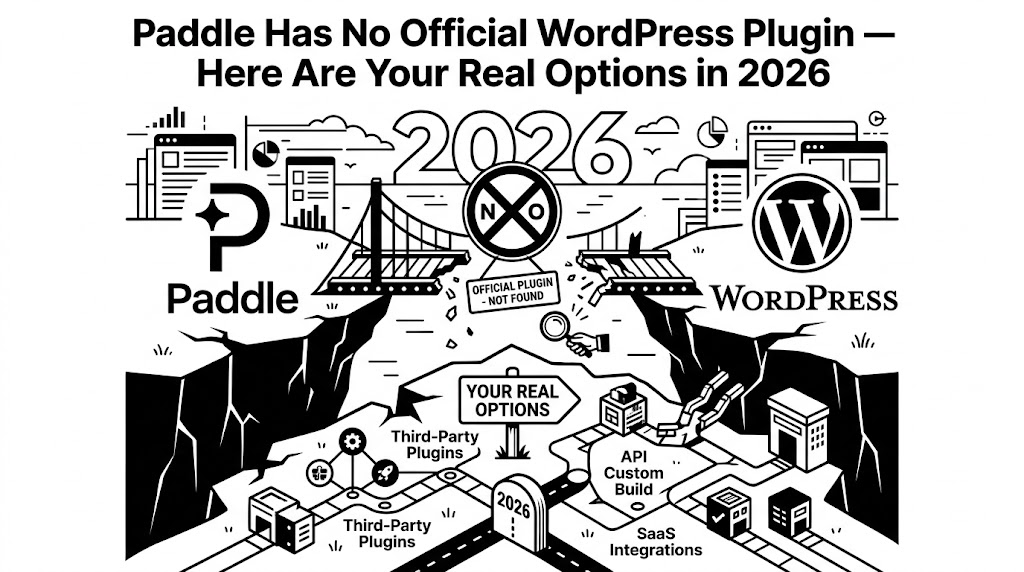
If you have ever searched for “Paddle WordPress plugin” or “Paddle WooCommerce integration,” you probably noticed something strange: there is no official plugin from Paddle.
No plugin on WordPress.org. No dedicated integration page on paddle.com for WordPress. No install-and-go solution from the Paddle team.
For a payment platform used by thousands of SaaS companies and digital product sellers worldwide, this gap is surprising — and frustrating.
In this article, we explain why Paddle has no official WordPress support, what alternatives exist, how much they actually cost, and which path makes the most sense if you sell digital products on WooCommerce.
Why Doesn’t Paddle Have an Official WordPress Plugin?
Paddle is built primarily for SaaS platforms and software companies that integrate payments directly into their own applications via API. Their core audience builds custom checkout flows, not WordPress sites.
Here is what Paddle officially supports:
- Paddle.js (JavaScript overlay checkout)
- Paddle Billing API (server-side transaction management)
- Native SDKs for Node.js, Python, Go, and .NET
What Paddle does not officially support:
- WordPress plugins
- WooCommerce payment gateways
- Any CMS-based integration
Paddle’s documentation is clear: they expect developers to build custom integrations. For a funded SaaS team with backend engineers, this is fine. For a WooCommerce store owner selling themes, plugins, courses, or digital downloads? It is a dead end without third-party help.
The Real Problem: Third-Party Plugins Are Either Limited or Expensive
Once you realize Paddle will not hand you a plugin, the search begins. And the options are not great:
Option 1: Free Plugins on WordPress.org
There are a few free plugins that attempt basic Paddle integration:
- Checkout Gateway for Paddle: Creates a simple Paddle checkout link from WooCommerce. It works for basic scenarios, but advanced features like webhook verification, order automation, and block checkout support are limited or missing. The install base is very small, and long-term maintenance is uncertain.
- PaddlePress (Free version): Connects Paddle to WordPress for membership and content restriction. Useful if you want to gate content behind Paddle subscriptions. But it is not a WooCommerce payment gateway — it does not follow the standard WooCommerce checkout and order lifecycle.
The free options can get you started, but they often break down at the point where you need reliable order synchronization, secure webhook handling, or seamless checkout UX.
Option 2: Premium Plugins with Recurring Fees
This is where it gets expensive.
Most commercial Paddle-for-WordPress solutions follow a yearly subscription model:
- Annual license fees typically range from $79 to $199+ per year
- Some charge per-site fees, so running multiple stores multiplies the cost
- Renewal is required to continue receiving updates and support
- If you stop paying, you keep the last version but lose compatibility updates — which matters because both Paddle API and WooCommerce update frequently
For a store doing $500/month in revenue, spending $150+/year just on a payment gateway plugin is a significant percentage of operating costs. And unlike Stripe or PayPal, where the official WooCommerce plugins are free, the Paddle ecosystem passes the integration cost entirely to the merchant.
Option 3: Build It Yourself
Some developers try to build a custom integration using Paddle.js and the Billing API directly. This is technically possible but comes with real challenges:
- You need to handle server-side transaction creation
- Webhook signature verification (HMAC-SHA256) must be implemented correctly
- Order status synchronization between Paddle events and WooCommerce requires careful mapping
- WooCommerce Blocks compatibility adds another layer of complexity
- Ongoing maintenance as both Paddle API versions and WooCommerce evolve
A custom build can easily take 40-80+ hours of development time, and it creates technical debt that someone has to maintain indefinitely.
What We Built — and Why
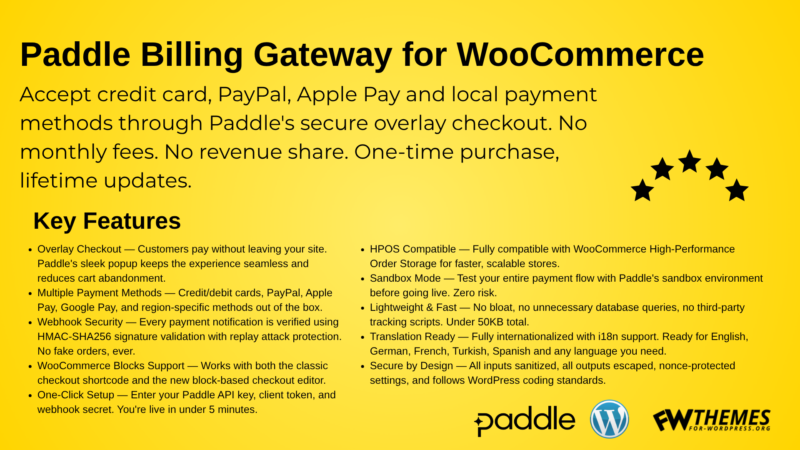
We built Paddle Billing for WooCommerce because we needed a solution that did not exist: a WooCommerce-native Paddle gateway that is reliable, secure, and does not lock you into yearly renewal fees.
Here is what it does:
Server-Side Transaction Flow
The plugin creates Paddle transactions on the server before the customer ever sees the checkout. This means the order exists in WooCommerce first, then payment is collected through Paddle’s secure overlay — keeping both systems in sync from the start.
Secure Webhook Processing
Every incoming webhook is verified using HMAC-SHA256 signature validation with timestamp checks. This prevents spoofed payment confirmations and replay attacks — a critical security layer that many lightweight integrations skip.
WooCommerce-Native Order Management
After payment, order statuses update automatically. Virtual and downloadable products can auto-complete for instant delivery. Stock is reduced at checkout. Order notes are logged with Paddle transaction IDs for easy reference.
Modern Checkout Compatibility
Full support for WooCommerce Blocks (the new block-based checkout) and HPOS (High-Performance Order Storage). These are not future features — they work today.
Overlay Checkout Experience
Customers stay on your site. The Paddle.js overlay opens on top of your page, handles the payment, and returns the customer to your thank-you page. No redirects to external domains. No broken UX.
Simple Setup
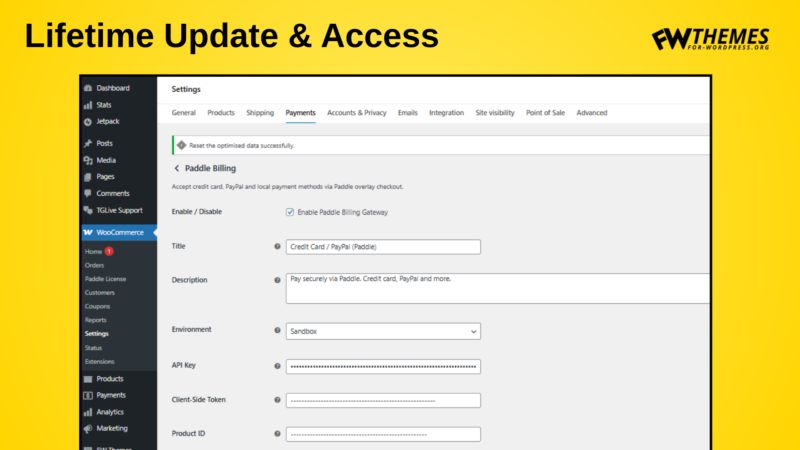
Four configuration fields: API Key, Client Token, Product ID, and Webhook Secret. Toggle between Sandbox and Production. That is it.
The Pricing Difference
This is where we are fundamentally different from most competitors:
- One-time purchase: You pay once and use it forever. No yearly renewals.
- Lifetime updates: You continue receiving plugin updates without additional fees.
- No per-site multiplication: Your license is not designed to drain your budget across multiple installations.
Compare this to the typical $99-199/year model and the math becomes clear quickly. Over 3 years, a $150/year plugin costs $450. Our one-time model eliminates that recurring overhead entirely.
We are not trying to build a subscription empire on top of your payment stack. We want you to integrate Paddle, start selling, and focus on your actual business.
Head-to-Head: Your Paddle Integration Options
Criteria: Official Paddle support
- Free WP plugins: None
- Premium yearly plugins: None
- Custom build: None
- Paddle Billing for WooCommerce: None (no plugin has this)
Criteria: WooCommerce checkout integration
- Free WP plugins: Basic
- Premium yearly plugins: Good to Excellent
- Custom build: Depends on developer
- Paddle Billing for WooCommerce: Full native integration
Criteria: Webhook security (HMAC-SHA256)
- Free WP plugins: Rare
- Premium yearly plugins: Usually included
- Custom build: Must implement manually
- Paddle Billing for WooCommerce: Built-in with timestamp validation
Criteria: WooCommerce Blocks support
- Free WP plugins: Rare
- Premium yearly plugins: Varies
- Custom build: Significant extra work
- Paddle Billing for WooCommerce: Full support
Criteria: HPOS compatibility
- Free WP plugins: Uncommon
- Premium yearly plugins: Increasingly common
- Custom build: Must declare manually
- Paddle Billing for WooCommerce: Declared compatible
Criteria: Ongoing cost
- Free WP plugins: Free (limited features)
- Premium yearly plugins: $79-199+/year
- Custom build: Development + maintenance hours
- Paddle Billing for WooCommerce: One-time payment
Criteria: Long-term maintenance risk
- Free WP plugins: High (small teams, uncertain updates)
- Premium yearly plugins: Medium (tied to renewal)
- Custom build: High (your responsibility)
- Paddle Billing for WooCommerce: Low (lifetime updates included)
Who Is This Plugin For?
You should consider Paddle Billing for WooCommerce if:
- You sell digital products (themes, plugins, software, courses, ebooks, templates, digital art)
- You chose Paddle specifically for its Merchant of Record model (handling global tax and compliance)
- You run a WooCommerce store and want Paddle as a payment method inside the standard checkout flow
- You are tired of paying yearly fees for a payment gateway plugin
- You want a lightweight, focused solution — not a bloated Swiss Army knife
You might not need this plugin if:
- You sell only physical products (Paddle is designed for digital goods)
- You need complex subscription management with upgrade/downgrade flows (our plugin focuses on one-time transactions)
- You prefer building everything custom and have dedicated backend engineering resources
The Bottom Line
Paddle is an excellent payment platform for digital sellers. But its lack of official WordPress support creates a real gap. The third-party ecosystem fills that gap — but often with high recurring costs or limited reliability.
We built Paddle Billing for WooCommerce to be the integration that should have existed from the start: WooCommerce-native, secure, modern, and fairly priced.
One plugin. One payment. Lifetime use.
Explore Paddle Billing for WooCommerce →
https://for-wordpress.org/product/paddle-billing-gateway-for-woocommerce/
Have questions about integrating Paddle with your WooCommerce store? Contact us — we are happy to help you map out the right setup for your business.